
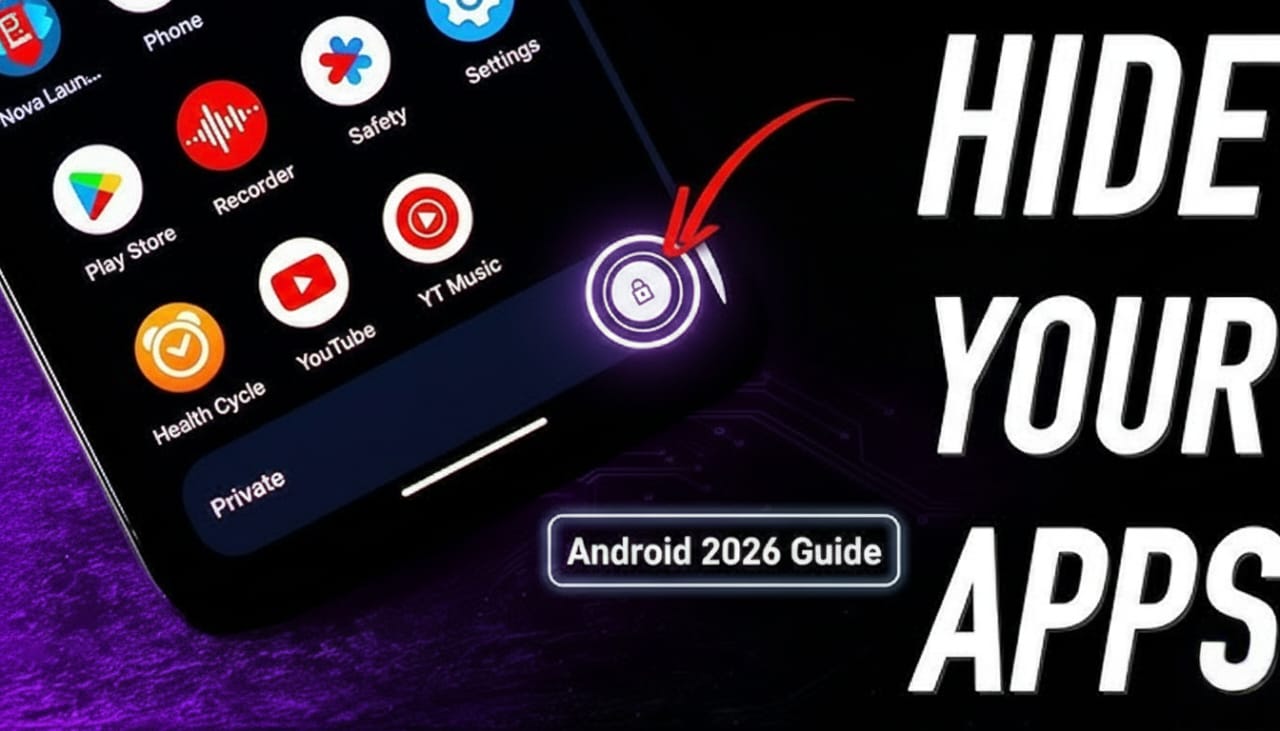
In 2026, privacy is more than just a setting; it’s a necessity. Whether you’re trying to keep sensitive work apps secure, hide a surprise gift app from a partner, or just declutter your home screen, Android offers several robust ways to keep your apps under wraps.
Here is your comprehensive guide on how to hide apps on Android using the latest 2026 features.
1. Use the Native “Private Space” (Android 15+)
If you have a newer device running Android 15 or later (like the Pixel 9 or 10 series), you have access to Private Space. This is a dedicated, sandboxed area on your phone that is separate from your main app list.
- How to set it up: Go to Settings > Security & Privacy > Private Space.
- How it works: You can move existing apps into this space or install them directly there. When the space is locked, the apps are completely hidden from your app drawer, notifications, and settings.
- The Pro Tip: You can even choose to hide the existence of the “Private Space” entry itself from your app list, making it accessible only by typing “Private Space” into the search bar.
2. Samsung Galaxy: Secure Folder & Home Screen Settings
Samsung remains the king of privacy features with its Secure Folder and built-in home screen toggles.
Using “Hide Apps” (Quick & Simple)
- Long-press any empty space on your Home Screen.
- Tap Settings (the gear icon).
- Scroll down to Hide apps on Home and Apps screens.
- Select the apps you want to disappear and tap Done.
- Note: These apps will still appear in search results unless you disable that in settings.
Using Secure Folder (Maximum Security)
For apps like banking or private messaging, use Secure Folder (found in Settings > Security and Privacy). This creates an encrypted, password-protected clone of the app that is invisible to the rest of the system.
3. OnePlus, Oppo, & Vivo: Dialer Codes
These brands use a unique “Dialer Code” method that is incredibly discreet.
- Go to Settings > Privacy > Hide Apps.
- Set up a Privacy Password.
- Choose your apps and set an Access Code (e.g.,
#1234#). - How to find them: Open your Phone/Dialer app, type your code (e.g.,
#1234#), and a hidden folder will instantly pop up.
4. Third-Party Launchers (For Every Other Phone)
If your phone doesn’t have a built-in “Hide” button, a third-party launcher is your best friend. Nova Launcher Prime and Microsoft Launcher are the top picks in 2026.
- Nova Launcher: Long-press an app icon > Edit > Uncheck “Apps Drawer” (or use the “Hide Apps” menu in Nova Settings).
- Microsoft Launcher: Open the App Drawer > Tap the three dots (top right) > Hidden Apps. You can even add a password here to keep them extra safe.
5. The “Disable” Method (For System Apps)
If you want to hide pre-installed “bloatware” that you can’t delete:
- Go to Settings > Apps.
- Select the app you want to hide.
- Tap Disable.
- Warning: This will stop the app from running and hide its icon, but you’ll need to “Enable” it again to use it.
Which method should you choose?
| Level of Privacy | Recommended Method | Best For |
| Low | Hide from Home Screen | Decluttering |
| Medium | Third-Party Launcher | Personal privacy |
| High | Private Space / Secure Folder | Banking, Work, Sensitive Data |
| Sneaky | Dialer Codes (Oppo/OnePlus) | Apps you want nobody to find |