
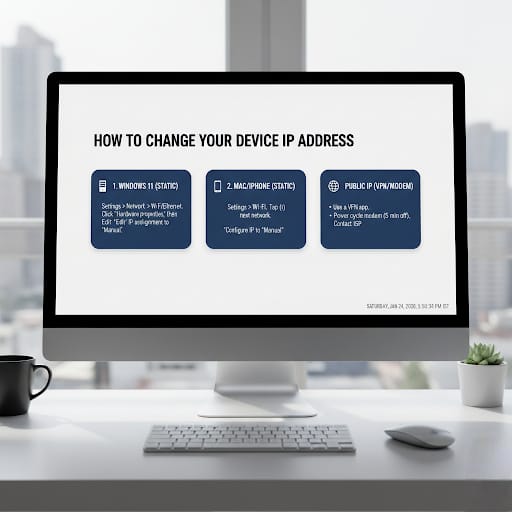
Changing your IP address might sound like something out of a spy movie, but it’s actually a common troubleshooting step or a way to enhance your privacy. Whether you’re trying to bypass a local network restriction or fix a “Limited Connectivity” error, here is how to get it done.
1. The Quick Refresh (Release & Renew)
Before you dive into manual settings, try the “soft” approach. This tells your router to give you a fresh address from its pool.
- Open Command Prompt (search for
cmdin the Start menu). - Type
ipconfig /releaseand hit Enter. (Your internet will drop momentarily). - Type
ipconfig /renewand hit Enter.
2. Changing Local IP on Windows 11
If you need a specific “Static IP” (common for port forwarding or printer setups), follow these steps:
- Go to Settings > Network & internet.
- Click on Wi-Fi or Ethernet (whichever you are using).
- Click on Hardware properties.
- Next to IP assignment, click Edit.
- Change the setting from Automatic (DHCP) to Manual.
- Toggle on IPv4 and enter your desired address.
3. Changing your Public IP (The “Internet” Face)
Your local IP is how your devices talk to the router; your Public IP is how the world sees you. Changing this is different:
- The Power Cycle: Unplug your modem for about 5 minutes. Many Internet Service Providers (ISPs) will assign a new IP once the modem reboots.
- Use a VPN: This is the most effective way. A VPN masks your real IP with one from their server.
- Contact your ISP: If you have a “Static IP” assigned by your provider, you’ll have to call them to request a change.
4. Changing IP on Mobile (Android & iOS)
For iPhone:
- Go to Settings > Wi-Fi.
- Tap the (i) icon next to your network.
- Select Configure IP and switch to Manual.
For Android:
- Go to Settings > Connections > Wi-Fi.
- Tap the Gear icon next to your current network.
- Tap View More and change IP settings from DHCP to Static.
A Quick Warning
Be careful when assigning manual IPs. If you choose an address already in use by another device on your network (like your phone or smart TV), you’ll create an IP Conflict, and neither device will be able to connect!
Would you like me to explain how to find a “safe” range of numbers to use for your static IP?