
Ever feel like your favorite app is moving as slow as a snail on a Sunday? Or maybe you’re getting those dreaded “Storage Full” notifications, but you aren’t ready to part ways with the app itself.
The good news is that you don’t always have to hit the “Uninstall” button to get a fresh start. You can actually wipe the slate clean (or just tidy up) by deleting app data and cache. Here is how to do it on both Android and iPhone.
1. The Android Way: The “True” Reset
Android is the champion of this feature. It allows you to wipe an app’s memory entirely without actually removing the program from your phone.
How to do it:
- Open Settings on your phone.
- Go to Apps (or Apps & Notifications > See all apps).
- Select the app you want to clean up.
- Tap on Storage & cache (sometimes just called Storage).
- You will see two options:
- Clear Cache: Think of this as “dusting.” it deletes temporary files (like thumbnails or pre-loaded pages) but keeps your logins and settings.
- Clear Data/Storage: This is the “factory reset” for that specific app. It deletes everything—accounts, settings, and databases.
2. The iPhone Situation: It’s… Complicated
Apple doesn’t offer a direct “Clear Data” button for most apps. If an app is bloated, iOS generally expects you to delete it and reinstall it. However, there are two “workarounds”:
Option A: Use the In-App Settings
Some apps (like TikTok, Snapchat, or Spotify) know they take up a lot of space and include their own “Clear Cache” or “Clear Data” buttons inside their own settings menus.
- Check: Open the app > Settings > Storage/Data.
Option B: “Offload” vs. “Delete”
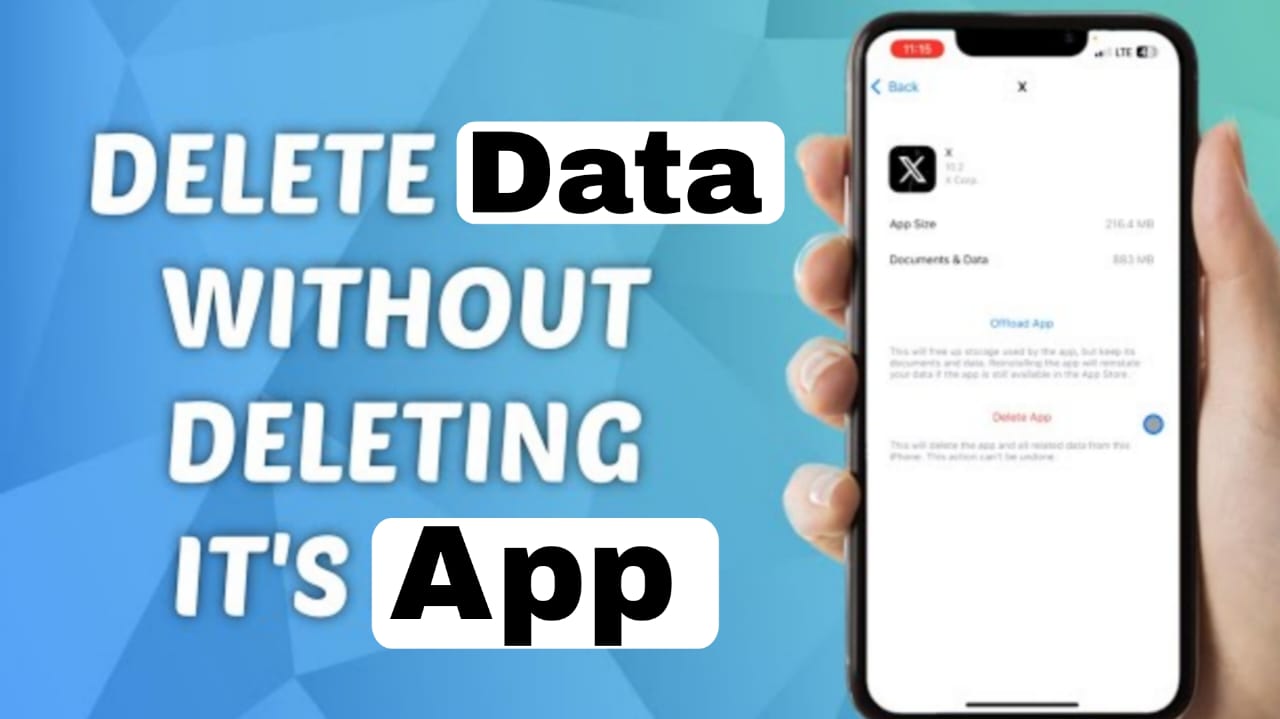
In your iPhone’s Settings > General > iPhone Storage, you’ll see two options when you tap an app:
- Offload App: This deletes the app itself to save space but keeps your data. When you reinstall it, your stuff is still there. (The opposite of what we want here!)
- Delete App: This is the only way to truly wipe the data. To “clear data” on an iPhone, you must Delete the app and then Reinstall it from the App Store.
Cache vs. Data: What’s the Difference?
Before you go on a deleting spree, it’s important to know what you’re actually removing.
| Feature | Clear Cache | Clear Data (Storage) |
| Purpose | Deletes temporary junk files. | Resets the app to factory settings. |
| Logins | You stay logged in. | You will be logged out. |
| Storage | Saves a little bit of space. | Saves the maximum amount of space. |
| App Speed | Might be slightly slower at first. | Like opening the app for the first time. |
When Should You Actually Do This?
- The App is Crashing: If an app keeps closing unexpectedly, a corrupted cache is often the culprit.
- Storage is Full: Social media apps and browsers can easily hoard gigabytes of “invisible” data.
- Privacy: If you want to hand your phone to someone but don’t want them seeing your search history or account in a specific app.
Warning: Clearing data is permanent! If you haven’t backed up your game progress or saved your login credentials, you might lose access to them.