
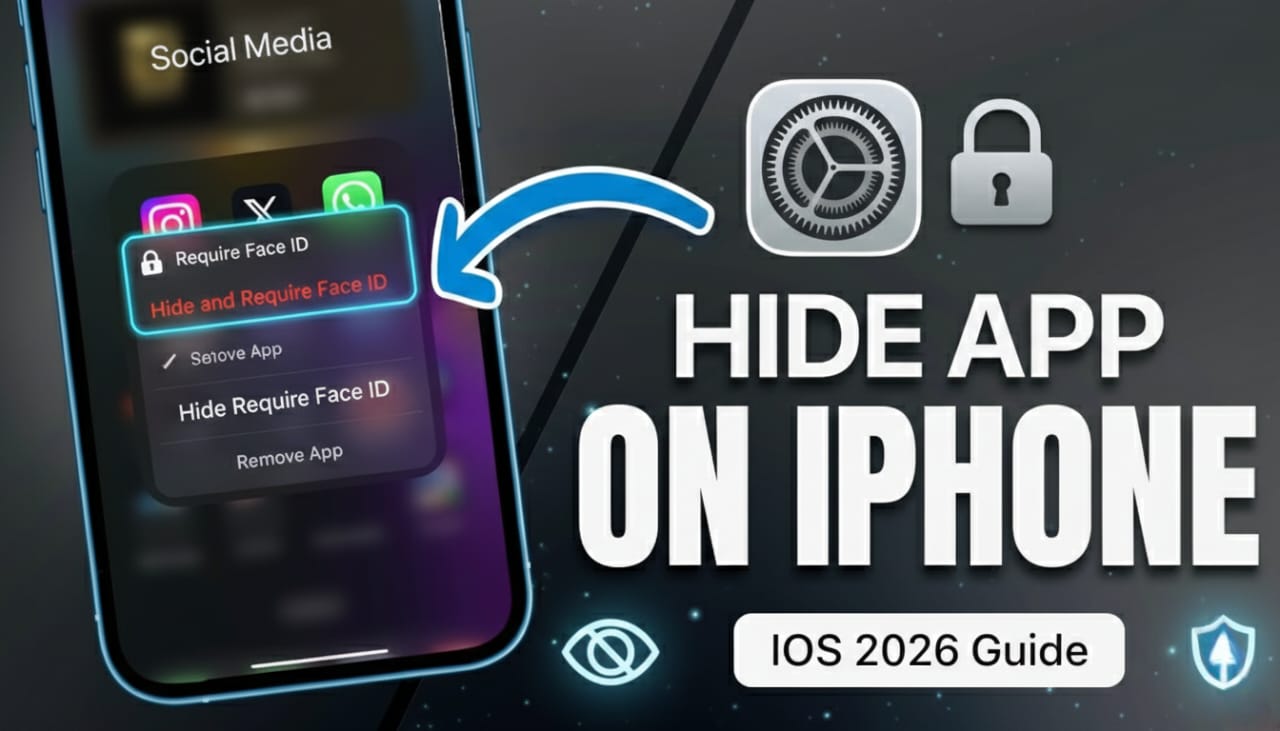
Hiding apps on your iPhone used to be a game of “hide the folder” or burying icons on the third page of a “Utilities” group. But with the latest iOS updates, Apple has finally introduced a native, secure way to tuck away your private apps—Face ID required.
Whether you’re trying to clean up your home screen or keep your banking apps under wraps, here is the definitive guide on how to hide apps on your iPhone in 2026.
Method 1: The “Hidden Folder” (iOS 18 & 26)
This is the most secure method. It doesn’t just hide the icon; it locks the app behind Face ID, stops notifications, and removes it from Siri search results.
- Long-press the app icon on your Home Screen.
- Tap Require Face ID (or Touch ID/Passcode).
- Select Hide and Require Face ID.
- Confirm by tapping Hide App.
The app will vanish from your Home Screen and move to a locked “Hidden” folder at the very bottom of your App Library.
Method 2: Removing from Home Screen (Soft Hide)
If you don’t need a biometric lock but just want to declutter your screen, you can “offload” the icon to the App Library.
- Long-press the app.
- Tap Remove App.
- Select Remove from Home Screen.
The app is still installed and searchable, but it won’t take up space on your main screens.
Method 3: Hiding Entire Home Screen Pages
Got a whole group of apps (like work apps for the weekend) you want to disappear at once? You can hide an entire page of icons.
- Long-press any blank area on your Home Screen until the apps jiggle.
- Tap the dots at the bottom of the screen (above the Dock).
- Uncheck the circle under the page you want to hide.
- Tap Done.
Pro Tip: This is great for “Focus Modes.” You can set your phone to automatically hide certain pages when you’re at the gym or in the office.
How to Find Your Hidden Apps
If you’ve used Method 1 (The Hidden Folder), finding them is a bit different than a standard search:
- Swipe left past all your Home Screen pages until you reach the App Library.
- Scroll all the way to the bottom.
- Tap the Hidden folder.
- Scan your Face ID.
Where else do they show up?
Even if an app is hidden, it may still appear in a few “system” areas:
- Settings > Apps > Hidden Apps (Requires Face ID to view the list).
- Settings > Battery (Under battery usage).
- App Store Purchase History.
Frequently Asked Questions
Can I hide the Photos app?
Currently, Apple does not allow you to hide “core” apps like Photos, Settings, or the App Store using the “Hide and Require Face ID” method. However, you can lock the Photos app itself or use the “Hidden” album feature within the Photos app.
Will I still get notifications?
If you use the “Hide and Require Face ID” method, you will not receive notifications or calls from that app. It is effectively “ghosted” until you open the hidden folder.